
Installation and update management
Product Manager User guides
Sign in with email verification and manage product installation, updates, launch and quit.
Mac 1.0.6 · Windows 1.0.6 reference · Updated
Labels may differ depending on the installed version and Premiere language.
IN PRACTICE
Usage guides and recorded examples
Refer to the manual and release notes for current instructions and released versions. The recordings below show the interface at the time of capture, not verification of the latest UI.
View earlier-version recordings and screenshots
These preserved examples show real use of earlier versions. Buttons, settings and sign-in requirements may differ today. Select a screenshot to view it at its original size.
01 · Recorded workflow · 25 seconds
Earlier-version reference recording
Sign in to the app with email verification
Use the separate verification window and confirm sign-in in the app. Email addresses, codes, and the inbox are obscured.
Read the video walkthrough
In Product Manager's SEOHA account area, choose Sign in by email. Enter the approved email in the separate verification window and complete the required consent and security check. Enter the emailed code in that window, return to the app, and confirm sign-in. Actual email addresses and codes are obscured, and the inbox is replaced with a black screen. Sign-in and product access are separate.
02 · Recorded workflow · 27 seconds
Earlier-version reference recording
Install products and open them in Premiere
From Product Manager installation checks to launching Premiere extensions and resident-menu apps.
Read the video walkthrough
Install the required products and shared SEOHA Bridge in Product Manager. Review and follow the installation instructions, then open Premiere. Open SEOHA Bridge and Caption Check from the Extensions menu, and launch Graphics Deck or Search Deck from the resident icon. Account information and the desktop were excluded from the public recording. Premiere must be fully quit and reopened after installation.
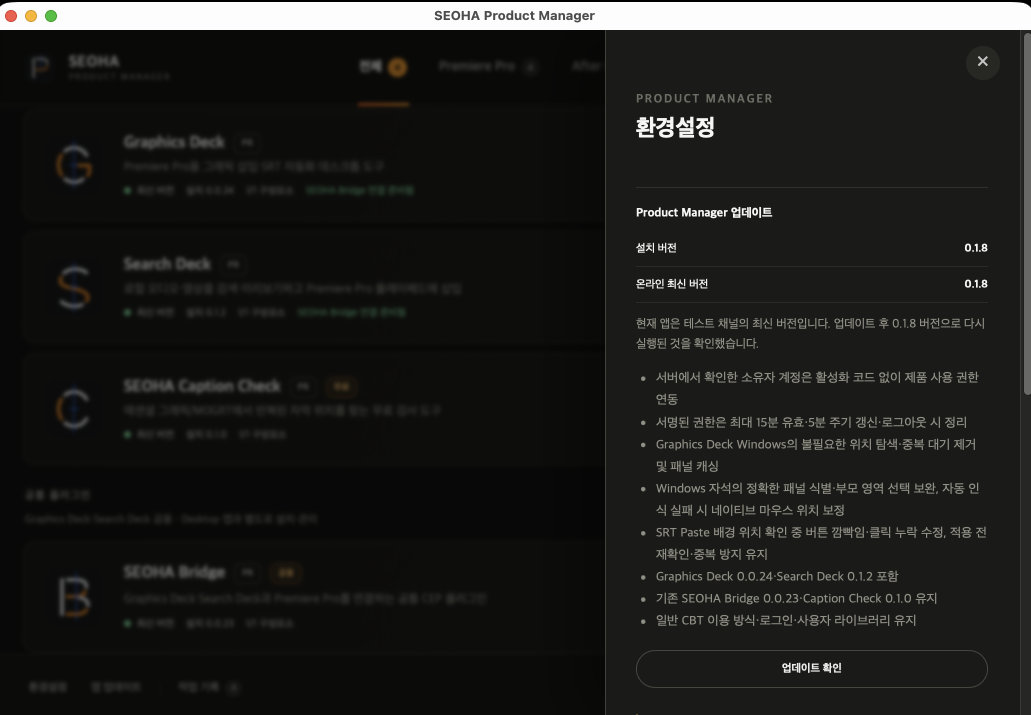
Recorded version 0.1.8 · earlier interface
Check app updates
Compare installed and online versions. The screenshot shows version 0.1.8; see release notes for the latest changes.
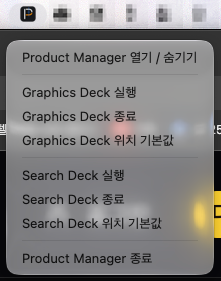
Earlier-version reference screenshot
Launch and quit from the resident menu
Launch or quit the two apps and reset their positions from the Mac menu bar. Windows uses the notification area.
01
First installation and sign-in
- Register or sign in on the website with email verification, then download Product Manager for your operating system from the download page. A purchase is not required to download it. Current desktop releases support macOS Apple Silicon and Windows x64.
- Install and open the app following the downloaded installer's instructions. If it was downloaded as an archive, extract the entire archive first.
- Select Sign in to SEOHA at the upper right, then Sign in with email. Complete the security check and email verification in the separate verification window.
- Return to the app and check the signed-in email address. Website and app sign-in are separate, so the app requires its own verification even when already signed in on the website.
02
Checking product access
- Current versions differ by product. Check the latest versions on the product cards and in the release notes, update Graphics Deck, Search Deck and the shared SEOHA Bridge separately, then restart Premiere.
- Sign in to the app with the email address granted access, then check the permitted products in the account screen at the upper right. No separate activation code is required.
- Caption Check is free, and SEOHA Bridge is a shared component. Personal MOGRT and sound-effect libraries are not separately supplied materials included with account access.
03
Installing the products needed
- Quit Premiere Pro and any Graphics Deck or Search Deck app being replaced. Do not reopen a program while it is being installed.
- Install SEOHA Bridge under Shared plugins. This connection plugin is shared by Graphics Deck and Search Deck and only needs to be installed once.
- Click Install for each product you need: Graphics Deck, Search Deck, SEOHA Caption Check, or Range Cut. Check each product's completion status.
- After installation, restart Premiere Pro and open a project and sequence. Launch Graphics Deck and Search Deck as separate apps; open Caption Check and Range Cut from Premiere's Extensions menu.
- The current empty-library releases do not include personal MOGRTs or sound effects. Add the materials to be used in each app.
- Mac apps are registered as applications when installed or opened. If the system Applications folder is not writable, the user Applications location is retained; administrator access is not requested automatically.
- Bridge is a separate shared product, not an internal component of Graphics Deck. Updating Graphics Deck alone does not mean that Bridge was replaced too.
- Use Tab to focus a product card, then press Enter or Space to open its details. Opening details does not start installation.
04
Product updates and app updates
Updating Product Manager itself is separate from updating each product. If an older manager cannot obtain the latest installer in the app, install the latest Product Manager from the official download page. Do not delete your existing user libraries.
- Update on a product card
- Updates that product. Graphics Deck and Search Deck are closed just before installation; if unresponsive, only the affected app is force-quit. Replacement stops if closure cannot be confirmed. Quit Premiere manually before replacing Bridge or Caption Check.
- App updates → Check for updates
- Check for a new version of Product Manager itself. Running the installer closes Graphics Deck and Search Deck before replacing and reopening Product Manager. Premiere is not force-quit. Accounts signed in with email verification can use the official download page regardless of purchase status.
- In-app update notifications
- Checks at app startup and every 30 minutes while running. View details in the notification opens only the Updates screen; it does not automatically install or close apps. A release dismissed with Later is not repeatedly announced.
- Arrow beside the Install button
- Opens Reinstall components, Product information, and Uninstall. For a temporary connection delay, restart the app and Premiere first; use Reinstall when installation damage is confirmed.
05
Opening and quitting from the tray or menu bar
Use the Product Manager icon in the macOS menu bar or the Windows notification area beside the clock. If the Windows icon is hidden, check the hidden-icons list.
- Open / Quit Graphics Deck or Search Deck
- Opens or quits each desktop app. Hiding a window and quitting an app are different operations.
- Reset position
- Returns a floating window that has moved off-screen to its default position. If Graphics Deck's magnetic alignment is enabled, turn it off first.
- Quit Product Manager
- Use Quit in the menu to stop the resident app as well. Closing only the main window may leave the background app running.
06
Sign-in and installation troubleshooting
- No download access
- Check that the email approved for access matches the email shown in the app. Sign in again if the session has expired. A shared installation link from another account does not grant access.
- macOS asks for the login keychain password
- This is the login keychain password for the current Mac user account. It is usually the password used to unlock the Mac, but may differ if changed separately. It is not an SEOHA email verification code or website password.
- Cannot connect to the update server
- Check the internet connection and app sign-in status, then try again. If it still fails, send support the app version, operating system, time of occurrence, and error message. Do not disable security software entirely.
- Cannot uninstall Bridge
- Removal is restricted while Graphics Deck or Search Deck, which use Bridge, are installed. Uninstall the dependent apps first, then check again.
Related guides
Include the product, OS and Premiere versions and the error message when contacting support. Do not send verification codes, session tokens, or original private project files.