
Checking potential duplicate captions
SEOHA Caption Check User guides
Reads exposed MOGRT Source Text to find potential duplicates. It does not automatically change or delete captions.
Mac 1.0.0 · Windows 1.0.0 reference · Updated
Labels may differ depending on the installed version and Premiere language.
IN PRACTICE
Usage guides and recorded examples
Refer to the manual and release notes for current instructions and released versions. The recordings below show the interface at the time of capture, not verification of the latest UI.
View earlier-version recordings and screenshots
These preserved examples show real use of earlier versions. Buttons, settings and sign-in requirements may differ today. Select a screenshot to view it at its original size.
01 · Recorded workflow · 10 seconds
Earlier-version reference recording
Find duplicate captions and review their locations
Review Caption Check's candidate list and timeline navigation in an actual sequence.
Read the video walkthrough
Run a duplicate scan in Caption Check for the sequence. Matching-text candidates appear in the results. Choose Go to on a result to review that caption's position. Results are review candidates; captions are not automatically edited or deleted.
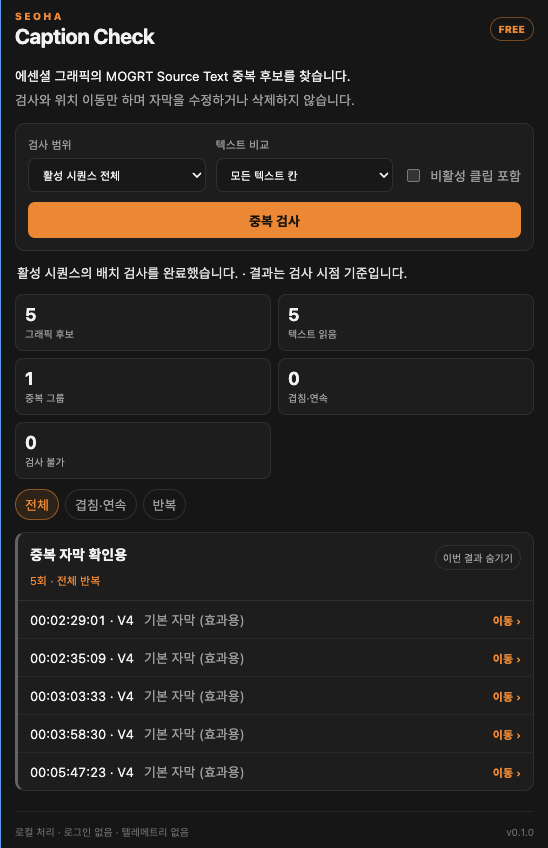
Earlier-version reference screenshot
Duplicate candidates and timecodes
Check repeat counts and locations for each phrase. Navigate to review manually; do not delete solely on the result.
01
Opening the panel and running a check
- Install SEOHA Caption Check in Product Manager, then restart Premiere Pro.
- Open the sequence to check and select Window → Extensions (Legacy) → SEOHA Caption Check. The Extensions menu label may vary with the Premiere version and language.
- Set the scope to the entire active sequence or selected clips only. To check a selection, first select the target clips on the timeline.
- Choose All text fields or First text field for text comparison, and enable Include disabled clips if needed.
- Select Check duplicates, then review the completion status, scan summary, and any unreadable items together.
- Compare All Text Fields includes field order and empty fields. For example, “A” in the first field and “A” in the second field are not the same arrangement. Items whose selected fields are all empty are excluded from candidates.
02
Reading results and jumping to a position
- Time overlap
- Candidates with identical text that overlap in time. Check whether they are duplicate captions placed on top of one another.
- Consecutive duplicates
- Candidates repeated in consecutive sections. A caption may have been left intentionally to connect a sentence.
- Repeated anywhere
- Candidates with the same text repeated at different positions. These may be intentional repetitions, such as greetings, names, or emphasized phrases.
- All / Overlap & consecutive / Repeated filters
- Narrows the types of results to review. Selecting a result's position moves the playhead to that caption's timecode.
03
What is and is not checked
- Checked content
- Exposed Source Text properties with identifiable names in MOGRTs placed directly in the active sequence.
- Currently excluded
- Premiere-native Text, native caption tracks, and the contents of nested sequences are not checked. This is not OCR for reading text already composited into video.
- Read-only
- The check does not modify or delete caption content or clips. Selecting a result position moves only the playhead. Checks are processed locally.
04
Panel and scan-result troubleshooting
- Not shown in the Extensions menu
- Check that Premiere was fully quit and restarted after installation. Check Caption Check's installation status in Product Manager and reinstall if needed.
- An obvious duplicate produces no result
- Check the scope, Include disabled clips, and text-comparison settings. Also distinguish native captions from directly placed MOGRTs.
- Some items could not be read
- Check whether the MOGRT exposes Source Text. Unreadable items have not been judged correct and must be inspected manually.
Related guides
Include the product, OS and Premiere versions and the error message when contacting support. Do not send verification codes, session tokens, or original private project files.