
Media search and insertion
Search Deck User guides
Find local audio and video, preview with Shift, then place the media at the playhead on the specified tracks.
Mac 1.0.3 · Windows 1.0.3 reference · Updated
Labels may differ depending on the installed version and Premiere language.
IN PRACTICE
Usage guides and recorded examples
Refer to the manual and release notes for current instructions and released versions. The recordings below show the interface at the time of capture, not verification of the latest UI.
01 · Recorded workflow · 91 seconds
Existing public demonstration · recorded version not documented
Search Deck: real workflow demonstration
A user-supplied silent recording covering local media search, timeline insertion and settings.
Read the video walkthrough
This user-supplied recording shows Search Deck in use: opening search over Premiere, finding local media and inserting it at the playhead on the selected track, followed by results, preferences and shortcuts. Audio is omitted. The audio/video files shown are not included in the product; users must supply media they have rights to use.
View earlier-version recordings and screenshots
These preserved examples show real use of earlier versions. Buttons, settings and sign-in requirements may differ today. Select a screenshot to view it at its original size.
01 · Recorded workflow · 12 seconds
Earlier-version reference recording
Find, preview, and insert sound effects
Open Search Deck, find a sound effect, and place it on the selected audio track.
Read the video walkthrough
Place the playhead at the desired insertion point in Premiere. Open Search Deck, enter a search, and select a result. Preview it and insert it; the audio clip appears on the timeline. In the app, Shift previews and Enter inserts.
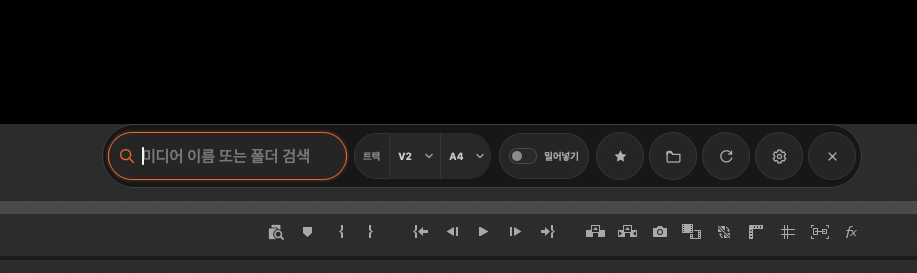
Earlier-version reference screenshot
Compact search bar
Collapsed view with search, V/A tracks, ripple insertion, and frequently used tools.
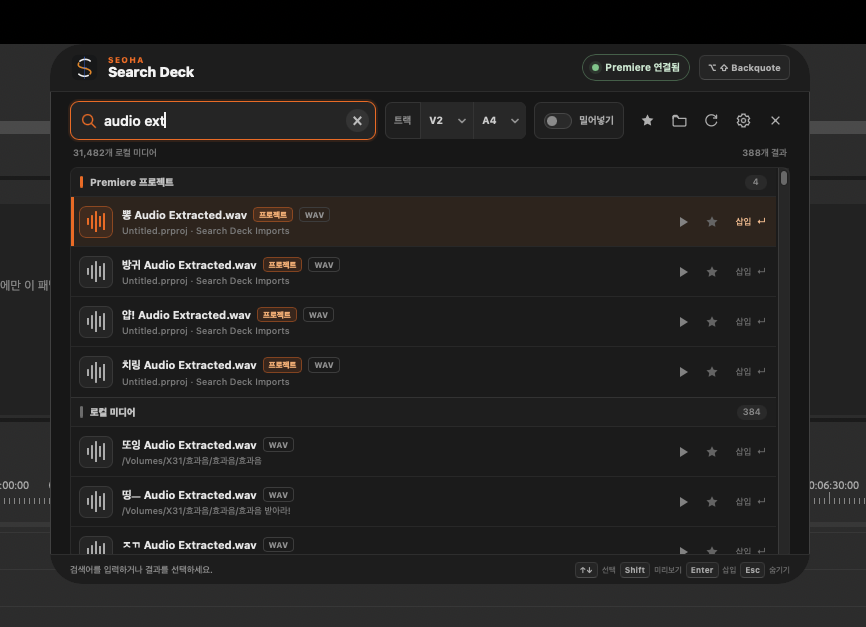
Earlier-version reference screenshot
Search project items and local audio
Distinguish Premiere project items from local results, with playback, favourites, and insertion.
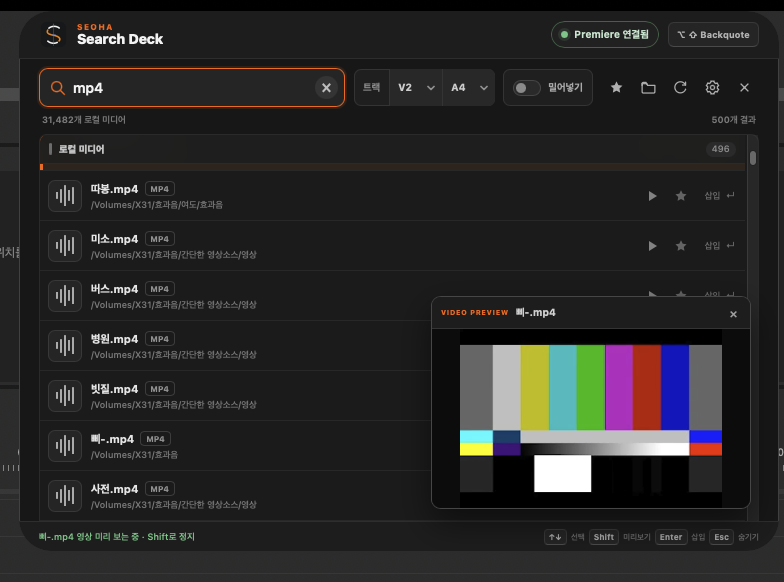
Earlier-version reference screenshot
Video preview
Review the selected video in a compact preview window. This shows actual video playback, distinct from audio preview.
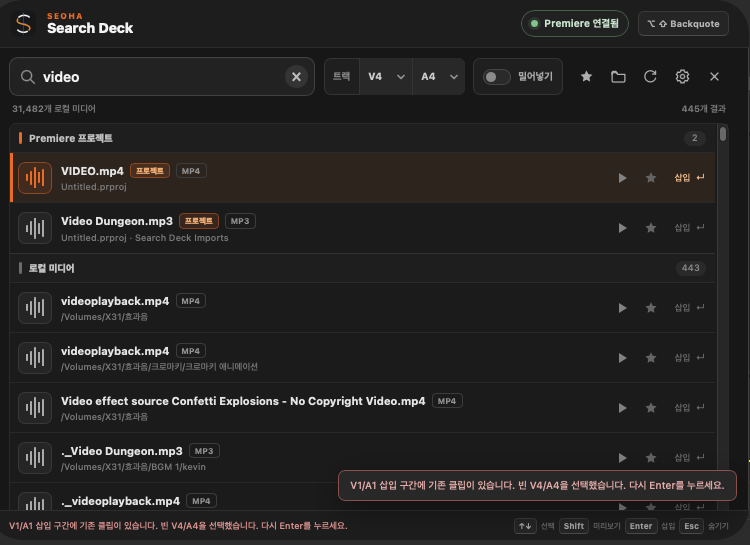
Earlier-version reference screenshot
When existing clips overlap
Recheck and insert after a suggestion for empty V/A tracks. Version 0.1.3 added persistent guidance and a confirmation button.
01
Adding search folders
- Install Search Deck and the shared SEOHA Bridge separately in Product Manager, then restart Premiere.
- Use the folder icon → Add folder in Search Deck to register sound-effect and video folders. Registered folders are indexed on this computer.
- Check indexing status, then enter a search term. Premiere project items and local media are displayed separately.
- After changing a folder's contents, use Rescan to refresh it. Reconnect any disconnected external drive before use.
- Media cannot be inserted while its source drive is disconnected, even if it remains in search results.
- Searching local files and inserting into a Premiere timeline are separate operations. Insertion requires a Bridge connection and an active sequence.
02
Open, selection, and preview shortcuts
- Mac: ⌘ + Shift + Space / Windows: Ctrl + Shift + Space
- This is the default global shortcut. If it was changed, use the current combination shown at the top of the app.
- ↑ / ↓
- Selects a search result. Finish Korean input composition before selecting a result.
- Shift
- Toggles preview for the item selected with the arrow keys. Audio is played as sound, and supported videos show a video preview. Space is not the preview shortcut.
- Enter
- Inserts the selected item on the specified tracks. Check the playhead and V/A tracks before insertion.
- Esc
- Hides the search window. It does not quit the app.
- Change the invocation shortcut using the shortcut button at the top or in Settings. If the new combination conflicts with another app, the previous combination is retained.
- The result's Play and Insert buttons can also be used instead of the keyboard. Preview may be limited by the internal codec even when the file extension is supported.
03
Choose tracks and place safely
- Open the target sequence in Premiere and place the playhead where the media should start.
- Check the video V track and audio A track at the top of Search Deck. Check both tracks if the video contains audio.
- To avoid shifting existing edits, turn off Ripple Insert and press Enter or the Insert button.
- If an overlap notice appears, check the filename that remains displayed and the available V/A tracks, then select Confirm or press Enter. The current conflict is checked again; suggesting empty tracks does not trigger automatic insertion.
04
When should Ripple Insert be enabled?
Enable Ripple Insert only when inserting media at the current position while shifting later edit points. This can change the existing timeline, so distinguish it from normal placement in empty space.
- After insertion, check the audio and later edit points as well as the video.
- Enable Automatically close Search Deck after successful insertion in Settings to hide the search window only when insertion succeeds.
05
Window position and quitting
- Remember position
- The app remembers a position set by dragging its title area and retains it when reopened or restarted.
- Settings → Reset position
- Returns the search window to the center of the current monitor.
- Settings → Quit Search Deck
- Closes the search window and quits the resident app. Quit Search Deck is also available from Product Manager's tray or menu-bar icon.
06
Search, preview, and insertion troubleshooting
- No results or file not found
- Check that the source files are in the search folder and the external SSD is connected, then rescan. For a library moved to another computer, register the actual folders on that computer.
- Preview does not work after Korean input
- Finish Korean input composition, select an item with the arrow keys, then press Shift. Also try the Play button. Update Search Deck if using an older version.
- The media configuration could not be safely verified
- The operation stopped because video/audio streams or tracks could not be confirmed. Check the Bridge and Search Deck versions, the sequence's V/A tracks, the source file, and Premiere's media-link status.
Related guides
Include the product, OS and Premiere versions and the error message when contacting support. Do not send verification codes, session tokens, or original private project files.