
Shared Premiere connection
SEOHA Bridge User guides
A shared CEP extension that relays requests from Graphics Deck and Search Deck to Premiere. Install it once, separately from the two apps.
Mac 1.0.0 · Windows 1.0.0 reference · Updated
Labels may differ depending on the installed version and Premiere language.
IN PRACTICE
Usage guides and recorded examples
Refer to the manual and release notes for current instructions and released versions. The recordings below show the interface at the time of capture, not verification of the latest UI.
View earlier-version recordings and screenshots
These preserved examples show real use of earlier versions. Buttons, settings and sign-in requirements may differ today. Select a screenshot to view it at its original size.
01 · Recorded workflow · 27 seconds
Earlier-version reference recording
Install products and open them in Premiere
From Product Manager installation checks to launching Premiere extensions and resident-menu apps.
Read the video walkthrough
Install the required products and shared SEOHA Bridge in Product Manager. Review and follow the installation instructions, then open Premiere. Open SEOHA Bridge and Caption Check from the Extensions menu, and launch Graphics Deck or Search Deck from the resident icon. Account information and the desktop were excluded from the public recording. Premiere must be fully quit and reopened after installation.
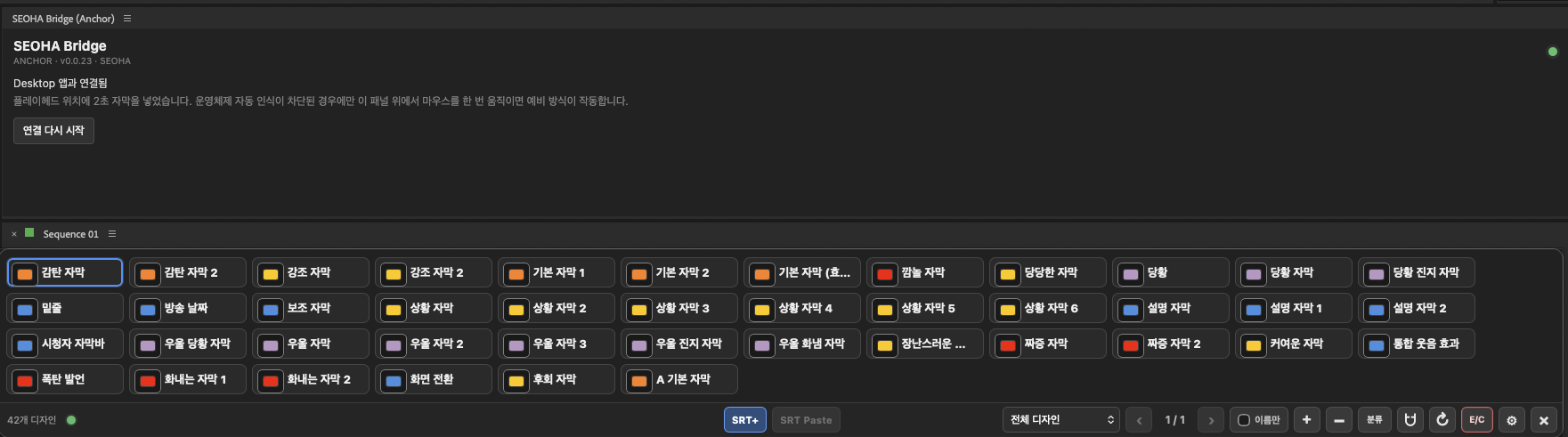
Earlier-version reference screenshot
Bridge Anchor in Premiere
The shared connection-status panel and an example Graphics Deck position. Update Desktop and Bridge separately.
01
Installing and connecting
- Save the current project and quit Premiere Pro.
- Install or update through Shared plugins → SEOHA Bridge in Product Manager. Do not install duplicate copies of Bridge for individual products.
- Restart Premiere, open the project and sequence, then launch Graphics Deck or Search Deck.
- Check each app's connection status. Normal connections are handled by the background Bridge, so the Anchor panel does not need to remain open.
- Use Graphics Deck 1.0.3's text-field selection and continuous insertion features with Bridge 1.0.0. Updating only one may trigger a connection compatibility notice.
- SEOHA Link is the previous name. Although Link may remain in some settings or error messages, the shared product is now named SEOHA Bridge.
- Caption Check has its own Premiere panel. Its role differs from the Bridge used by Graphics Deck and Search Deck.
02
The Anchor panel and magnetic alignment
- In Premiere, open Window → Extensions (Legacy) → SEOHA Bridge (Anchor). Depending on the version, the menu may be labeled Extensions.
- Dock the panel in the desired workspace area. It serves as a position reference when aligning the Graphics Deck window to that area.
- Enable Automatic Link panel detection / magnetic alignment in Graphics Deck Settings. Check position-detection status and any required macOS permission guidance.
03
Connection-loss checks in order
- Do not repeatedly submit the same request. First check that ongoing operations, Premiere dialogs, and loading have finished.
- Check that a project and active sequence are open in Premiere.
- Use Restart connection in Bridge Anchor to request a new connection. If it still does not connect, save the project and restart both Premiere and the relevant desktop app.
- Check for updates to Bridge and each desktop app being used in Product Manager. Premiere must be restarted after installing Bridge.
04
Performance, version, and removal issues
- It says the user-library migration needs recovery
- Automatic changes have stopped and recovery copies have been preserved. Do not delete the library or recovery folders or repeat the same operation. Contact support with your app and Bridge versions and error records. This message does not mean that automatic recovery has completed.
- Enabling Bridge causes slowdowns
- Quit Graphics Deck and Search Deck one at a time to identify which app is associated with the slowdown. Also check with Graphics Deck's magnetic alignment disabled. Send support the Bridge, app, Premiere, and OS versions together with the error message.
- Anchor identity could not be found
- Panel-position detection and the normal connection are separate functions. Check that the Anchor panel is visible, and use free placement with magnetic alignment disabled for now. Instead of repeatedly retrying, check the app and Bridge versions and error log.
- It still behaves like the old version after updating
- Premiere may retain older CEP code. Fully quit and restart Premiere, then check with support whether an older CEP was separately installed in another location.
- Can Bridge be removed?
- Bridge is required for Graphics Deck and Search Deck to insert into Premiere. Keep it installed while using those features. Remove products through Product Manager; do not delete system folders manually.
Related guides
Include the product, OS and Premiere versions and the error message when contacting support. Do not send verification codes, session tokens, or original private project files.